How to Unlock Bootloader on Infinix Smart 8 Pro
Warnings — Read Before You Begin
- Data wipe: Unlocking the bootloader will factory reset your device and erase all personal data. Back up everything first.
- Warranty void: Unlocking may permanently void your manufacturer warranty.
- Brick risk: Incorrect procedures or interruptions during the process can render your device unusable.
- Security: An unlocked bootloader weakens the device's verified boot chain, making it more vulnerable to tampering.
- OTA updates: Some devices will no longer receive official over-the-air updates after unlocking.
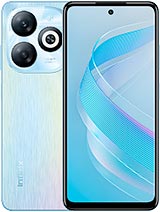
Infinix Smart 8 Pro
Required Tools
- Android SDK Platform-Tools (ADB & Fastboot)
- MediaTek (MTK) USB & Google USB Drivers for Windows
- USB Type-C to Type-A High Quality Data Cable
Steps
Step 1: Backup All Personal Data & Charge Phone
Unlocking the bootloader will trigger a full factory data reset, erasing all personal files, photos, contacts, and installed apps.
Ensure you backup all important files to cloud storage or a computer.
Make sure your Infinix Smart 8 Pro battery is charged to at least 60% before continuing.Step 2: Enable Developer Options, OEM Unlocking & USB Debugging
1. Open 'Settings' on your Infinix Smart 8 Pro.
2. Tap 'My Phone' and scroll down to 'Build Number'.
3. Tap on 'Build Number' 7 times continuously until you see 'You are now a developer!'.
4. Return to 'Settings' > 'System' > 'Developer Options'.
5. Toggle ON both 'OEM Unlocking' and 'USB Debugging'.Step 3: Install MediaTek USB Drivers on PC
Download and install MediaTek MTK USB VCOM / Android Bootloader Interface drivers on your Windows PC to ensure stable communication with the device in Fastboot Mode.
Step 4: Boot Infinix Smart 8 Pro into Fastboot Mode
Method 1 (Hardware Keys):
1. Power off your phone completely.
2. Press and hold Volume Down + Power button together until the Fastboot logo appears on the screen.
Method 2 (ADB Command):
Connect phone to PC with USB Debugging enabled and execute:adb reboot bootloaderStep 5: Verify Fastboot Connection on PC
Open Command Prompt or PowerShell inside the extracted 'platform-tools' directory on your computer and verify the connection:
fastboot devicesStep 6: Execute Bootloader Unlock Command
Send the flashing unlock command to your Infinix Smart 8 Pro:
fastboot flashing unlockStep 7: Confirm Unlock on Device Screen
Look at your Infinix Smart 8 Pro display.
1. A warning confirmation screen will appear.
2. Press the Volume Up button to confirm and proceed with bootloader unlock.
3. The device will format userdata and unlock the bootloader.Step 8: Reboot Phone into Android System
Once the unlock process completes, reboot your Infinix device into the system:
Note: The initial boot after data wipe may take 5 to 10 minutes.fastboot reboot